The old way
- 1Research DDNS, a static IP, or router settings
- 2Figure out how to safely open remote connections
- 3Remember IP addresses, ports, and login entry points
- 4Re-adjust settings whenever the network environment changes
Secure, fast, and unthrottled, without publishing the NAS admin interface.
Deploy HomiPlay on a QNAP NAS; transfer speeds depend on the available network bandwidth.
Never worry about leaving critical data behind at home. HomiPlay builds a secure tunnel directly from your device to your home QNAP NAS with zero complex configuration. Open a browser anytime to retrieve files and sign in to the QTS management interface. Large files, entire photo albums, and video assets can all be retrieved at speeds reaching your home network's upper limit.
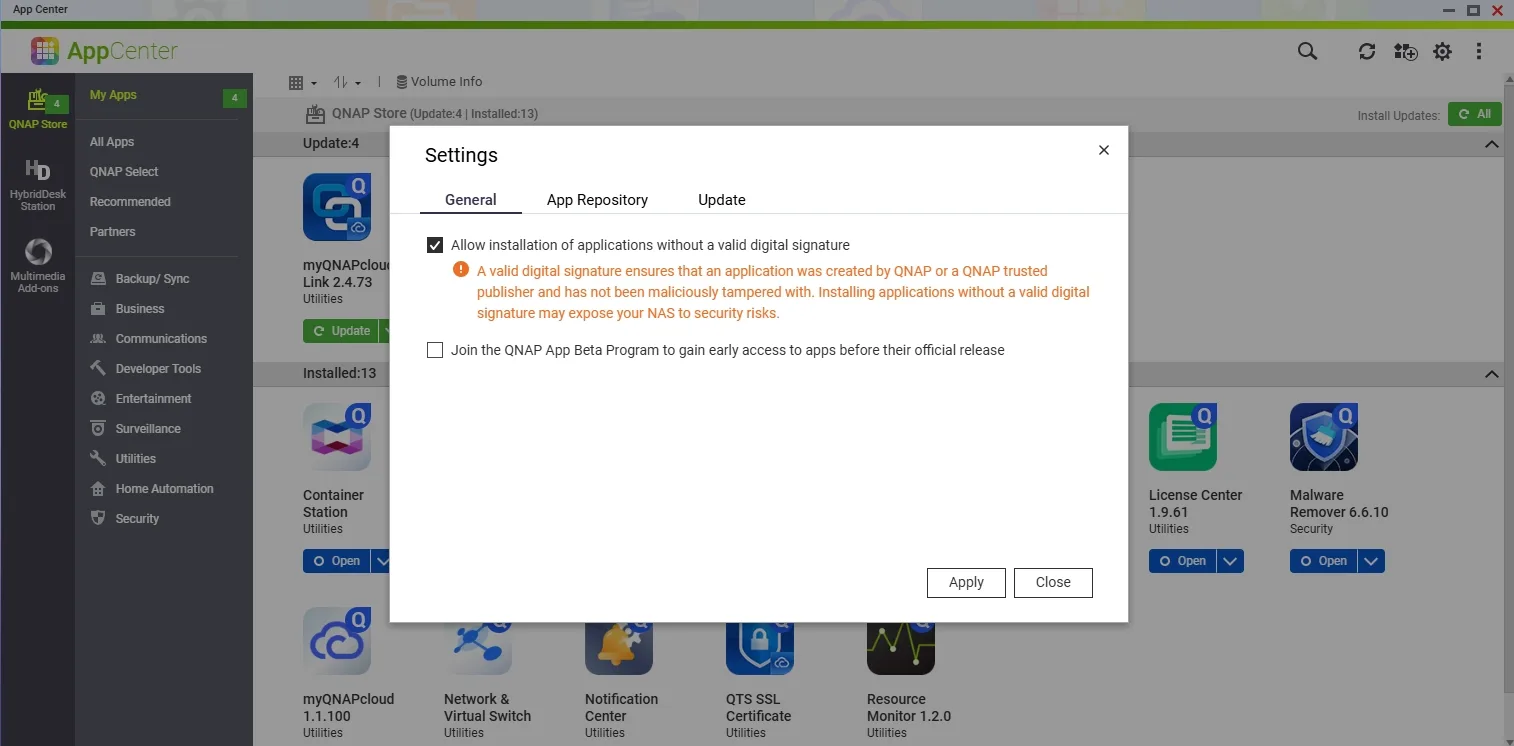
Go to GitHub Releases to download the latest package. You can find your CPU type at the top of QTS "Control Panel" (or by checking your model specs on the QNAP website): download x86_64.qpkg for Intel / AMD processors, or arm_64.qpkg for ARM processors.
Installation Steps:
.qpkg file.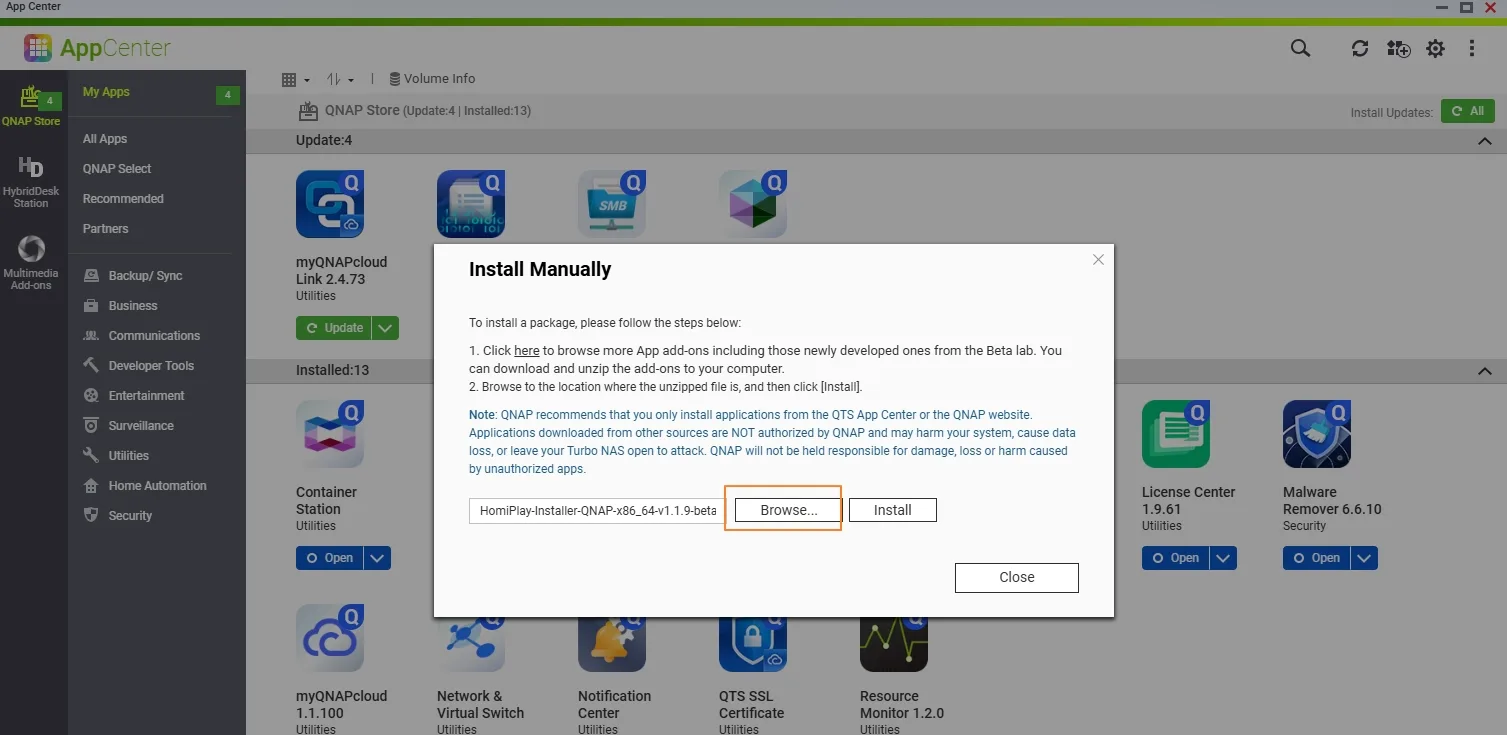
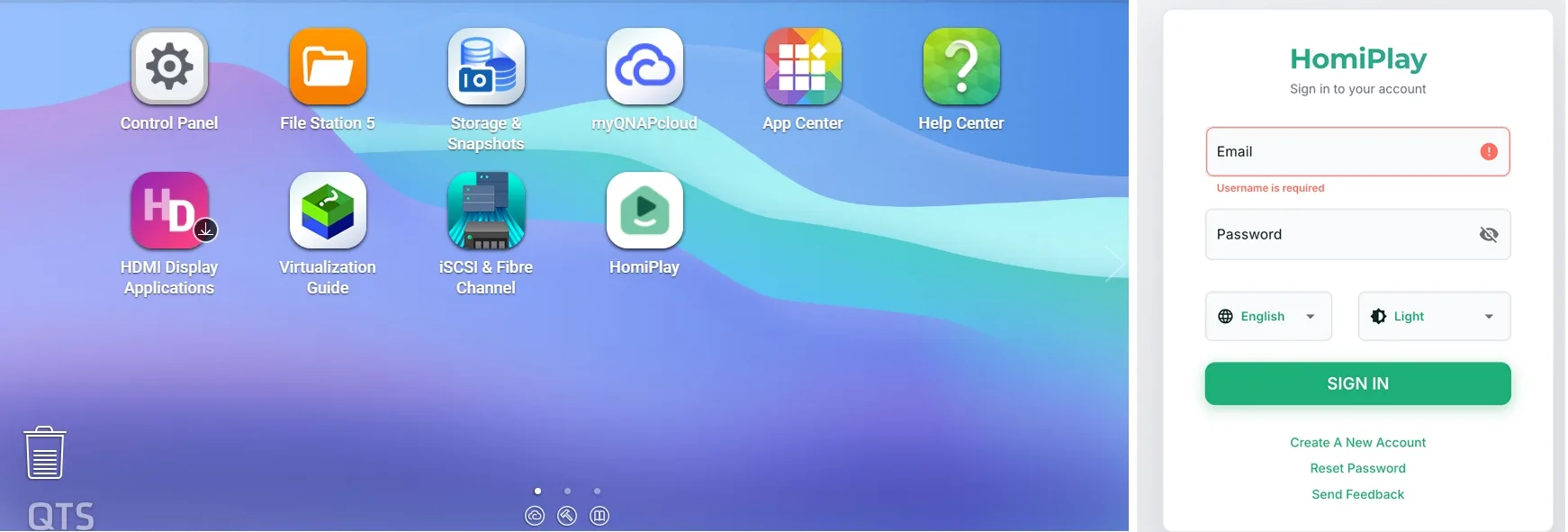
Once installed, click the "HomiPlay" icon directly on the QTS desktop (or access https://<NAS_IP>/homiplay/ via browser). Sign in with your HomiPlay credentials. Once the initial setup is complete, confirm that the status in the top right shows a green "Online"—your NAS is now securely connected to the private encrypted tunnel!
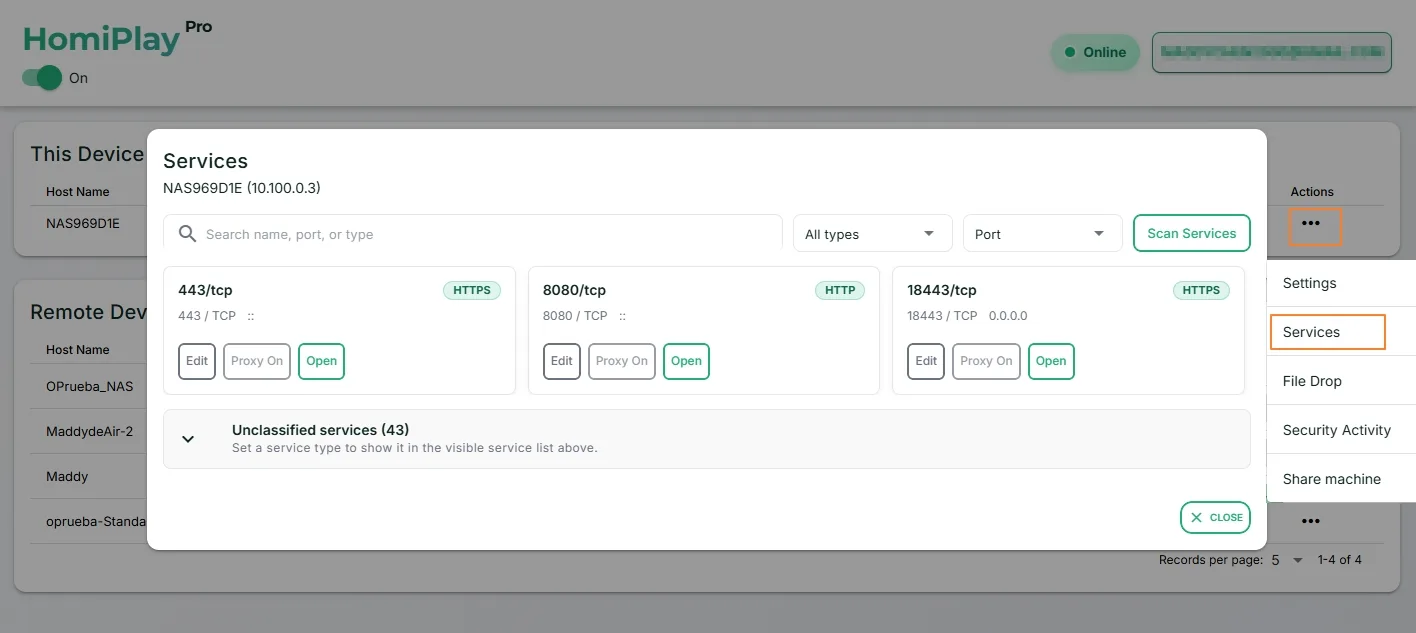
When away from home, open HomiPlay on your remote device (laptop or mobile phone), locate your NAS in the remote device list, click "Services" from the right-hand menu, and enable the target service.
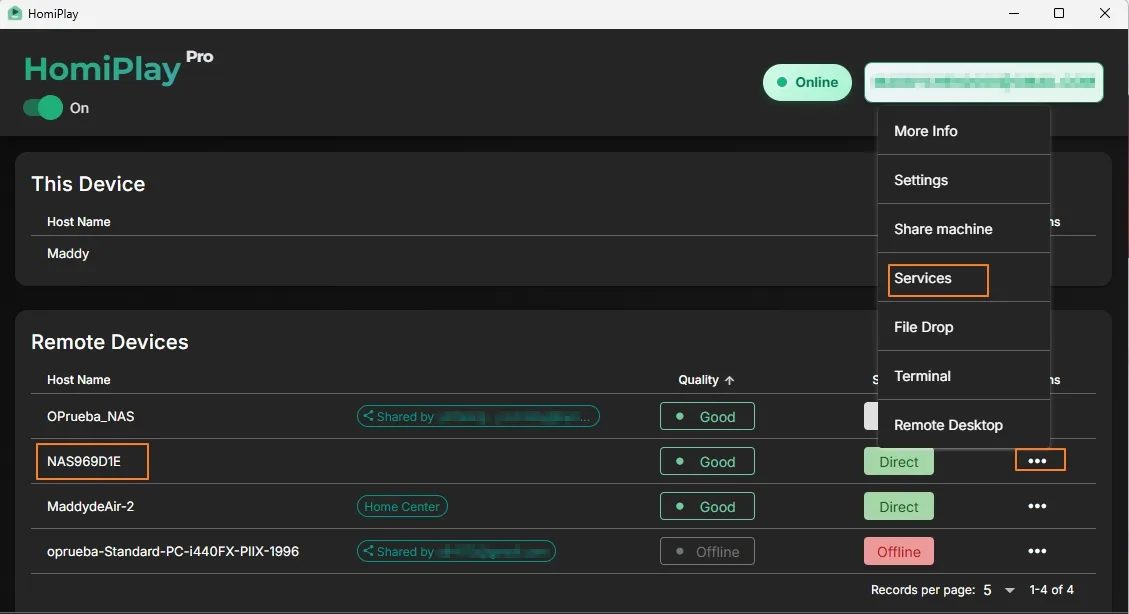
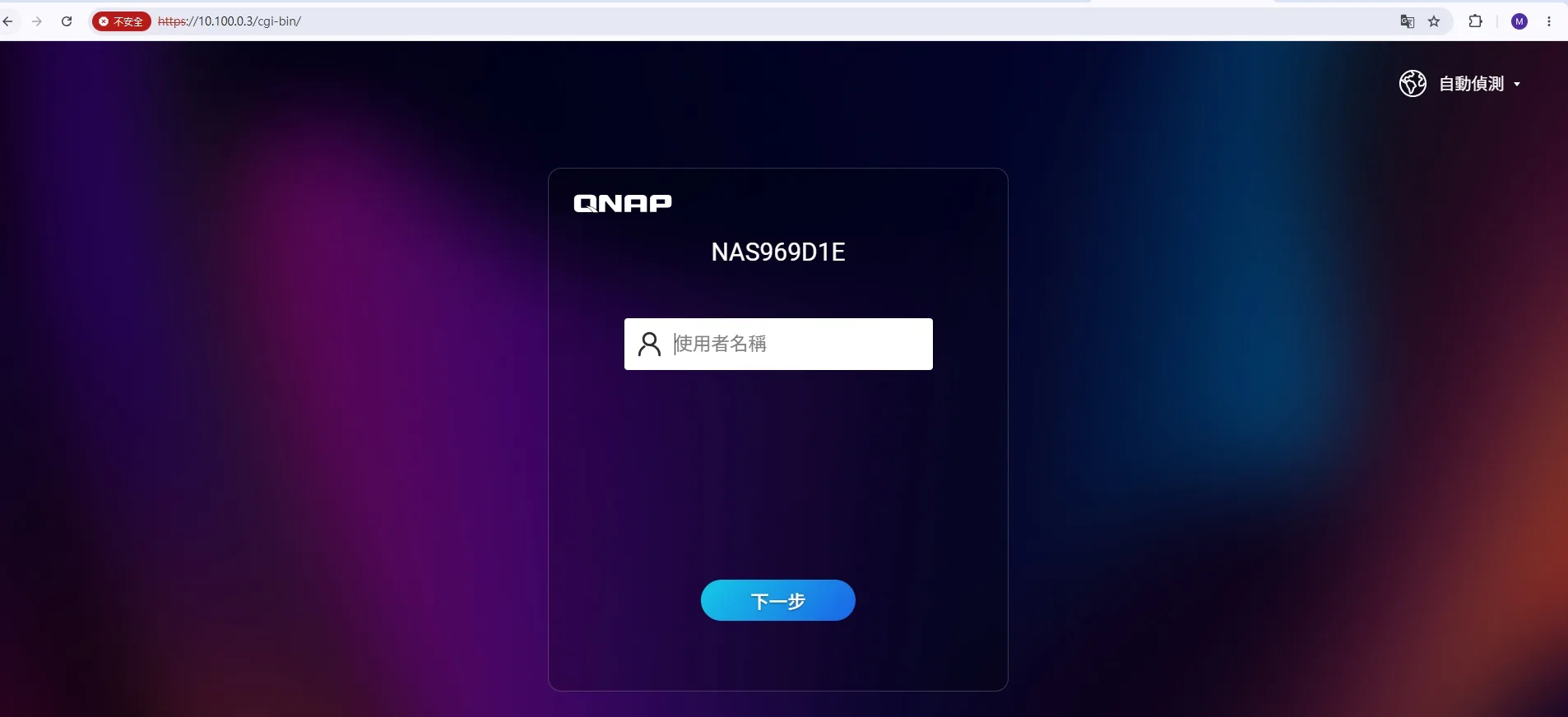
The system will open a dedicated secure URL in your browser (or you can connect directly via virtual IP and port, e.g., 10.100.0.3:8080), loading the QNAP login page. Access your internal files and services anytime on the go!
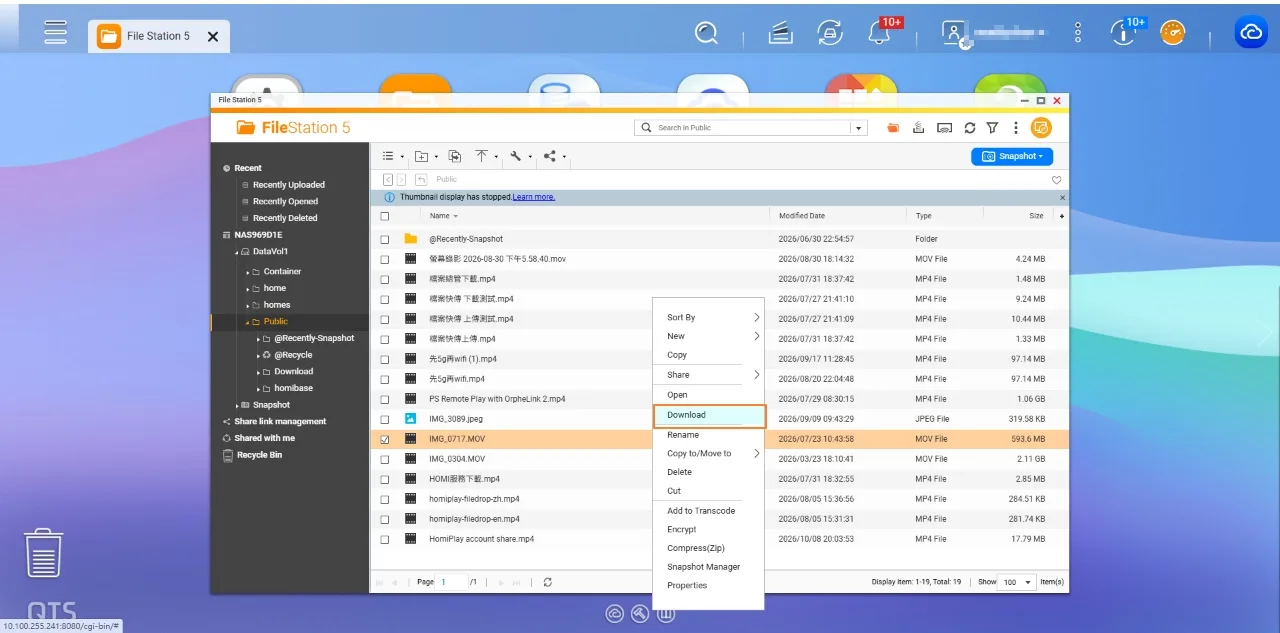
After logging in to QTS, open File Station, locate the file or folder you need, right-click, and select "Download" to save it to your current device. Files are transferred over HomiPlay's direct connection, with download speeds determined by your own network bandwidth—even large files come back quickly.
HomiPlay establishes a dedicated encrypted connection tunnel, allowing remote devices to securely connect straight to your home QNAP device. After setting up the service port, simply open the corresponding service from the "Services" list on your remote device to access the NAS login page via a web browser.
Let them approve the connection at their computer, then help from elsewhere without exchanging passwords or leaving permanent access.
Learn MoreConnect through your home network even when you're away, maintaining a consistent network environment.
Learn MoreConnect through your home network, then open PS Remote Play and continue the game.
Learn MoreReach OpenClaw and local models without publishing them to the internet.
Learn MoreOpen that computer from home and continue where you stopped.
Learn MoreCheck the remote computer or handle a quick action before you get back.
Learn MoreMove it directly between computers without uploading it to the cloud first.
Learn MoreSend it directly without finding a cable or waiting for a cloud upload.
Learn MoreRoute the connection through your own home network before doing anything private.
Learn MoreEffortlessly share Synology NAS services with other HomiPlay users.
Learn MoreNo complex network setup needed. Securely connect to your home Synology NAS anytime, anywhere
Learn MoreNo VPN configuration required, and no need to expose SMB services to the public internet.
Learn More