Choose either method:
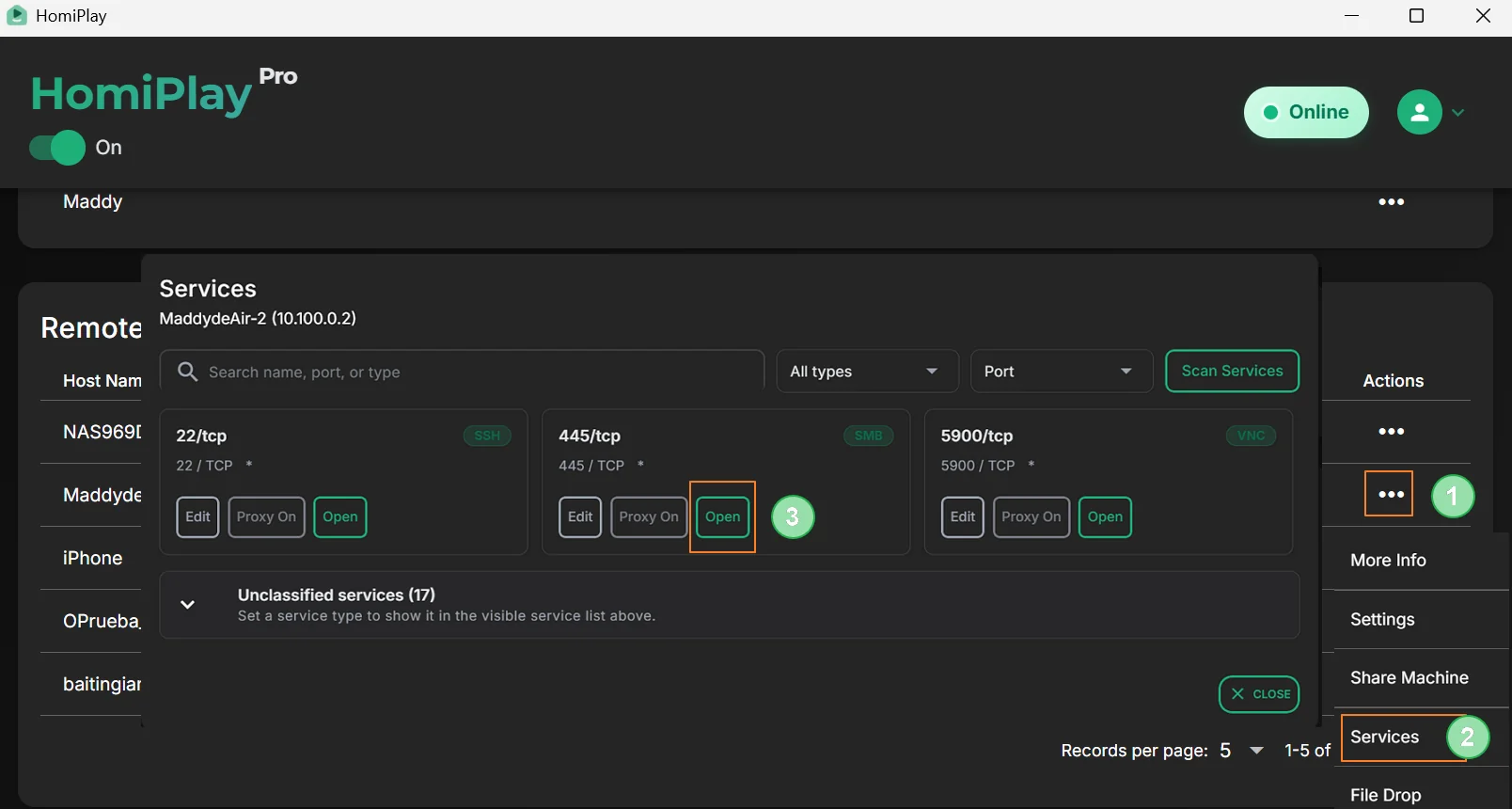
- Method A (from HomiPlay): Click Open next to
445/tcp (SMB) in the Services list
- Method B (type the address): Open File Explorer, type
\\10.100.0.2 (replace with the target computer's virtual address) in the address bar, and press Enter
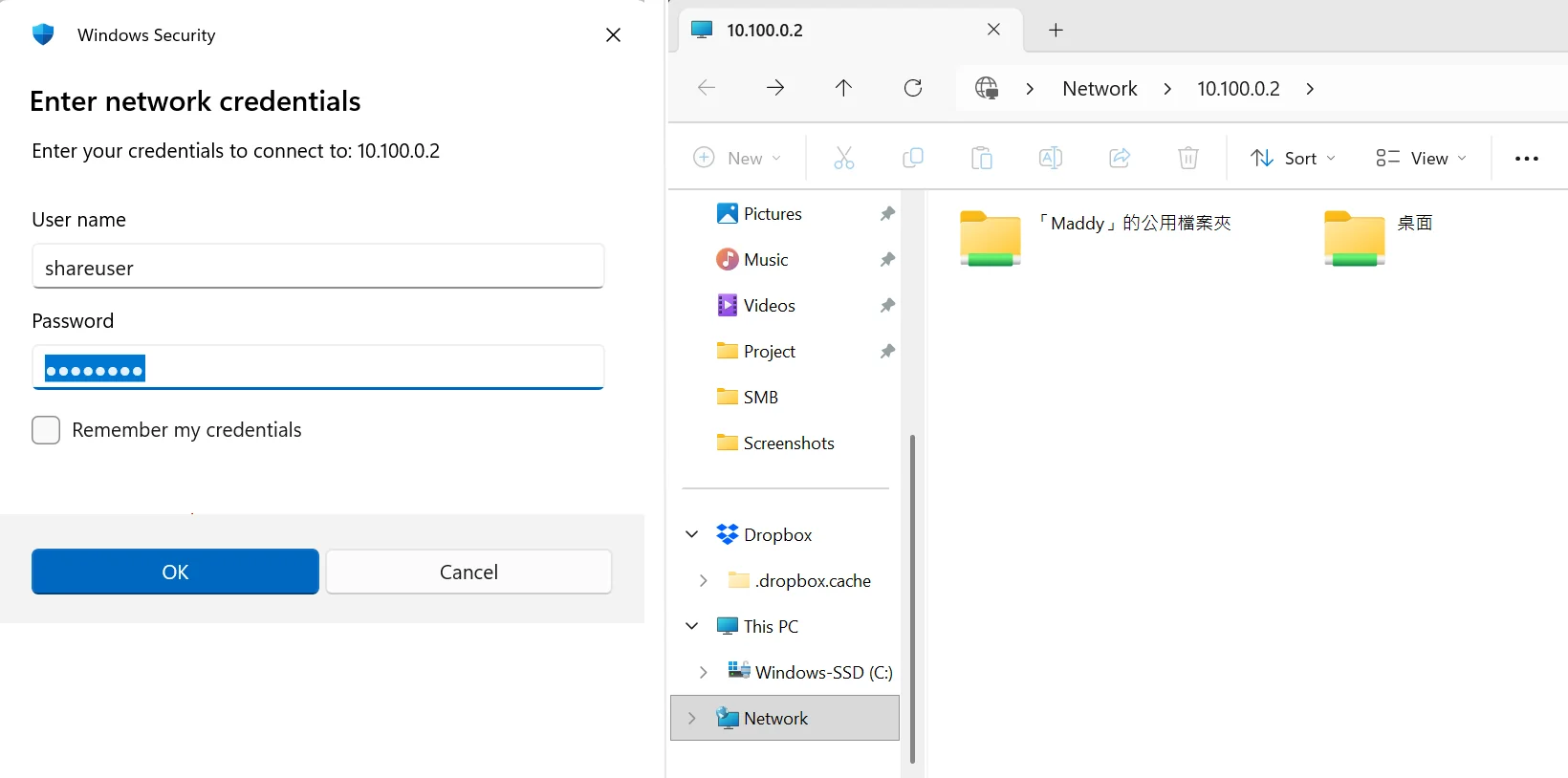
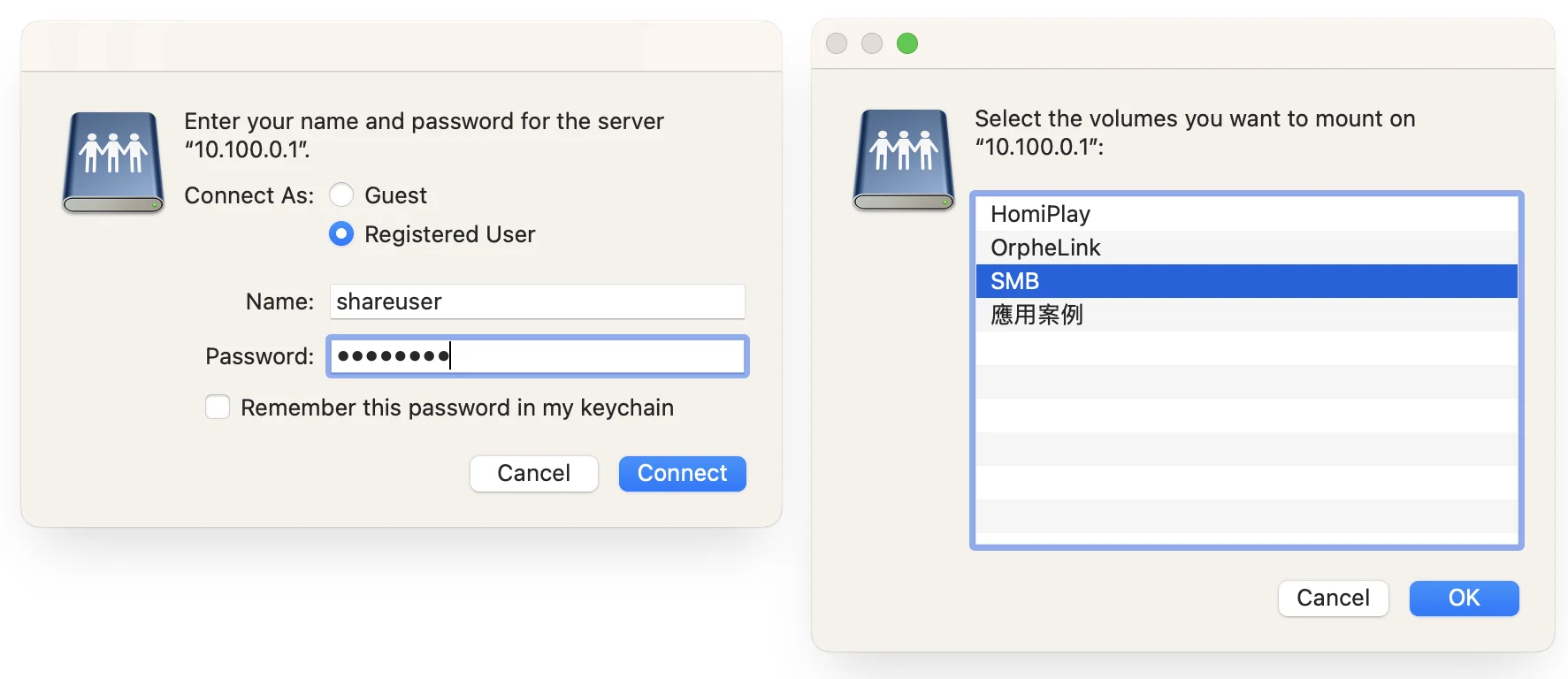
Enter your network credentials when prompted. Use the system account of the target computer, not your HomiPlay account:
- Connecting to a Mac: Enter the Mac's short account name as the user name (run
whoami in the Mac Terminal to find it) and the Mac login password
- Connecting to Windows: Enter the Windows account and password that has been granted sharing permission on the target computer, which is the account you added in Step 1. This can be a dedicated account created just for sharing (for example
shareuser) or your everyday local account. Do not use a PIN, because a PIN only works for local sign-in
After you sign in, you can browse, open, and copy remote files in File Explorer (as shown on the right). What you can see depends on the target computer:
- Connecting to a Mac: The Shared Folders are listed; if you sign in with a standard or administrator account, you may also see personal folders such as Public and Desktop, according to that account's system permissions
- Connecting to Windows: Only folders that have been shared are listed
You can also right-click a folder and choose Map network drive to open it later straight from This PC.