The old way
- 1Try to identify screens and buttons over a phone call
- 2Ask family to share a password or install an unfamiliar tool
- 3Leave long-term remote access behind after a one-time task
Skip the guesswork over the phone and help on their screen without asking them to share a password.
Once they approve the connection, you sign in with your own HomiPlay account for time-limited help; access can expire automatically or be revoked at any time.
Dad wants to add some old photos to the family album, but he cannot find where the files are saved or tell what to click next on the website. With a time-limited share and his approval, his daughter connects remotely, finds the photos, and finishes the upload with him. Access ends as configured once the task is done.
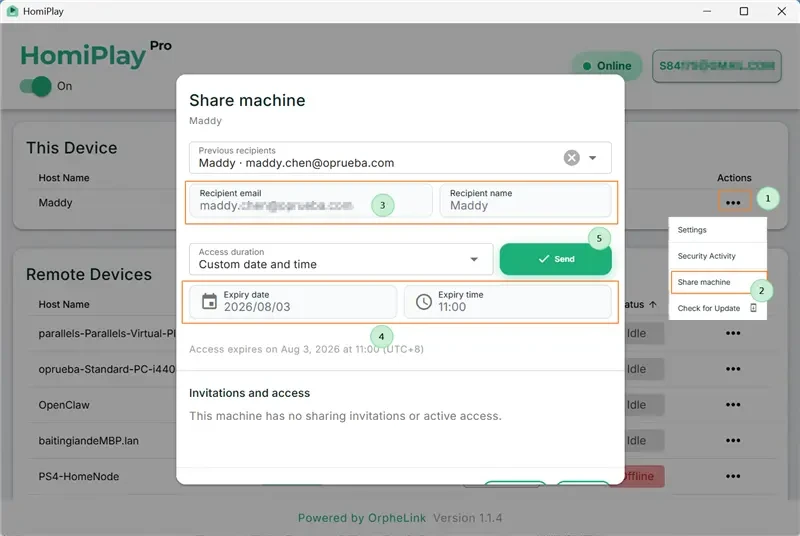
On the device you want to share, select Share Machine, enter the recipient's HomiPlay account email, set an expiration time, and send the invitation.
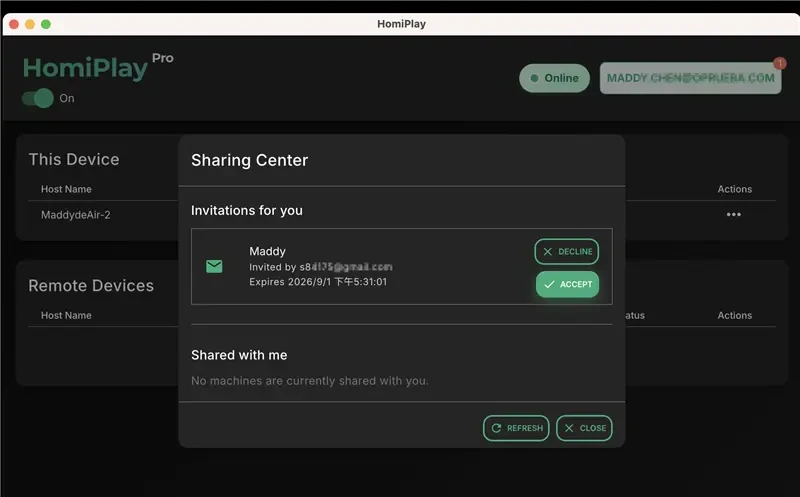
After signing in to their HomiPlay account, the recipient sees a sharing notification. Select Accept to add the device.
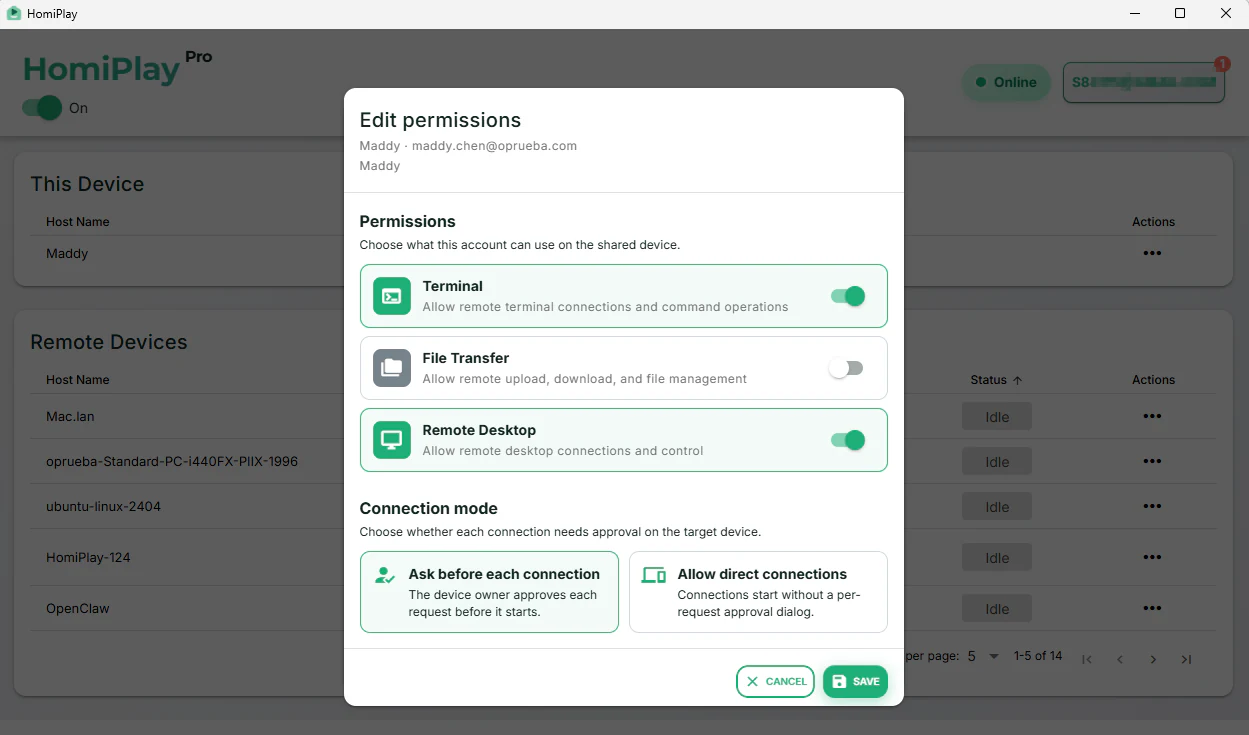
Choose which features the recipient can use: Terminal allows command-line operations; File Drop allows file uploads, downloads, and management; Remote Desktop allows remote screen control. You can also select a connection approval mode. Attended Mode requires someone at the device to approve each connection, making it suitable for temporary assistance and remote support. Unattended Mode connects without confirmation on the device, making it suitable for personal remote work, home-computer access, and server administration.
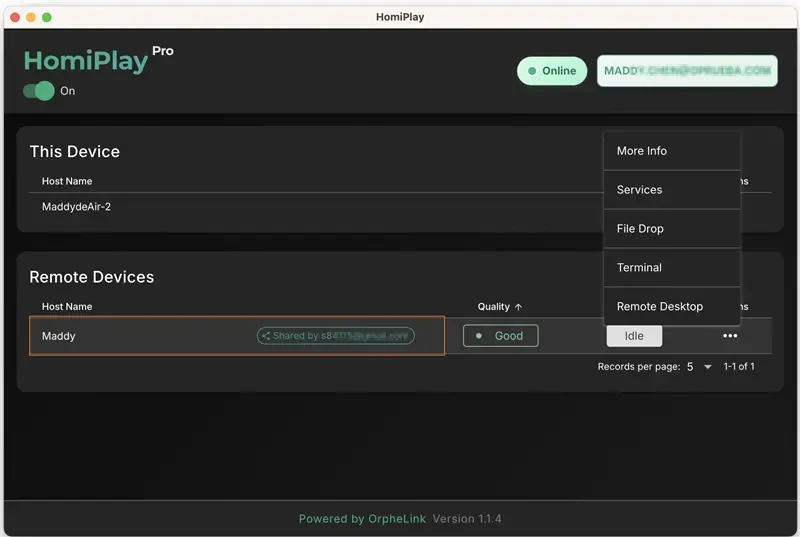
After signing in, the recipient can find the shared device in their device list and use Remote Desktop, File Drop, Terminal, and any other HomiPlay features supported by that device. When the sharing period ends, the device is automatically removed from the list. The owner can also revoke access at any time.
The helper signs in with their own HomiPlay account. The person at the device can approve each connection, while the device owner can limit available features, set an expiration time, and revoke access at any point.
Connect through your home network even when you're away, maintaining a consistent network environment.
Learn MoreConnect through your home network, then open PS Remote Play and continue the game.
Learn MoreReach OpenClaw and local models without publishing them to the internet.
Learn MoreOpen that computer from home and continue where you stopped.
Learn MoreCheck the remote computer or handle a quick action before you get back.
Learn MoreMove it directly between computers without uploading it to the cloud first.
Learn MoreSend it directly without finding a cable or waiting for a cloud upload.
Learn MoreRoute the connection through your own home network before doing anything private.
Learn MoreEffortlessly share Synology NAS services with other HomiPlay users.
Learn MoreNo complex network setup needed. Securely connect to your home Synology NAS anytime, anywhere
Learn MoreNo VPN configuration required, and no need to expose SMB services to the public internet.
Learn MoreNo complex setup—securely access your NAS anytime, anywhere
Learn More