← Back to Use Cases

Remote Access to Your Home NAS (Synology NAS Example)

Secure, fast, and unthrottled, without publishing the NAS admin interface.

Deploy HomiPlay on Synology and your direct connection speed is limited only by your own bandwidth.

The old way

  1. 1Configure DDNS, a static IP, or the router
  2. 2Expose NAS services to the internet
  3. 3Remember addresses, ports, and sign-in entry points
  4. 4Re-adjust settings whenever the network changes
  5. 5Put up with relayed or third-party forwarding services that limit your speed
With HomiPlay

  1. Install HomiPlay (Docker) on your NAS to start remote access right away
  2. No complex network setup, and no need to expose any ports
  3. Connect directly back to your own NAS from anywhere
  4. Peer-to-peer direct connection first, so speed depends on your own bandwidth
  5. Access your files and services anytime

Secure and Fast: No Exposure, No Speed Cap

Never worry about leaving your data at home. HomiPlay builds a secure tunnel from your device straight to your home Synology NAS. With no complex setup, you can open a browser anytime to retrieve files and sign in to the DSM management interface. Large files, entire photo albums, and video assets come back at speeds close to your network's limit.

HomiPlay Prerequisites

  • A NAS that supports Docker (Container Manager) and has a working internet connection
  • Administrator privileges
  • A registered HomiPlay account

More ways to use it

  • Quickly pull large work assets at a client site
  • Stream your home media library while away (Synology Video Station, Plex, Jellyfin, and more)
  • Back up and organize photos and files while traveling, without worrying about data caps
  • Access the self-hosted services on your NAS at the same time
  • Securely share access with other HomiPlay account users

Setup Steps

1

Install HomiPlay on Your Synology NAS

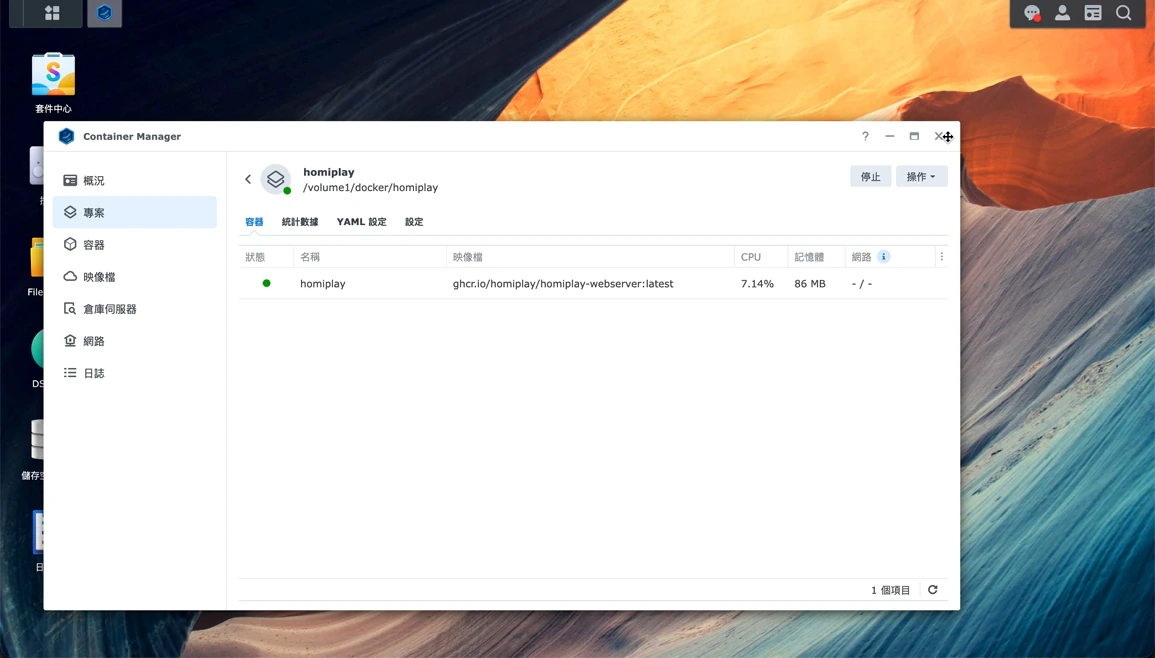
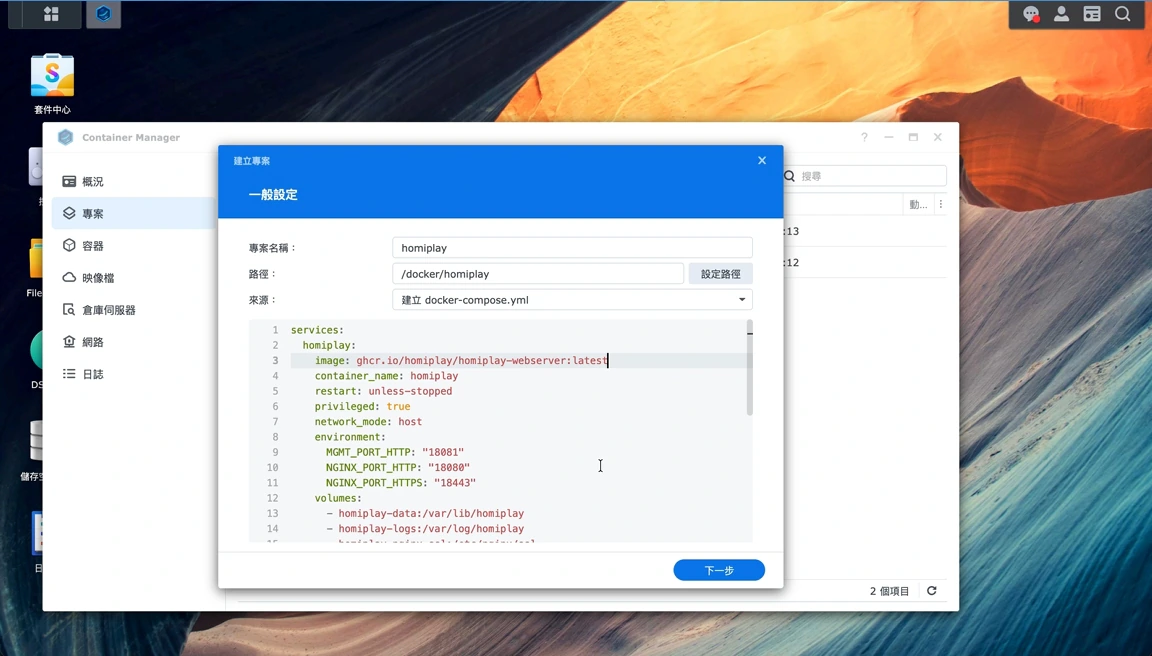
  • Sign in to Synology DSM, open "Package Center", search for and install "Container Manager", then launch it.

  • Open Container Manager, and select "Project" > "Create" from the left menu.

    • Enter a project name (homiplay), select "Create docker-compose.yml", and paste the configuration below into the editor, then click Next to complete setup:
text
services:
  homiplay:
    image: ghcr.io/homiplay/homiplay-webserver:latest
    container_name: homiplay
    restart: unless-stopped
    privileged: true
    network_mode: host
    environment:
      MGMT_PORT_HTTP: "18081"
      NGINX_PORT_HTTP: "18080"
      NGINX_PORT_HTTPS: "18443"
    volumes:
      - homiplay-data:/var/lib/homiplay
      - homiplay-logs:/var/log/homiplay
      - homiplay-nginx-ssl:/etc/nginx/ssl
volumes:
  homiplay-data:
  homiplay-logs:
  homiplay-nginx-ssl:

💡 For more details and advanced options, refer to the official
README Web Server Docker

Step 1 illustration
2

Check HomiPlay's Running Status

After deployment is complete, confirm in the container list that the homiplay status shows as running.

Step 2 illustration
3

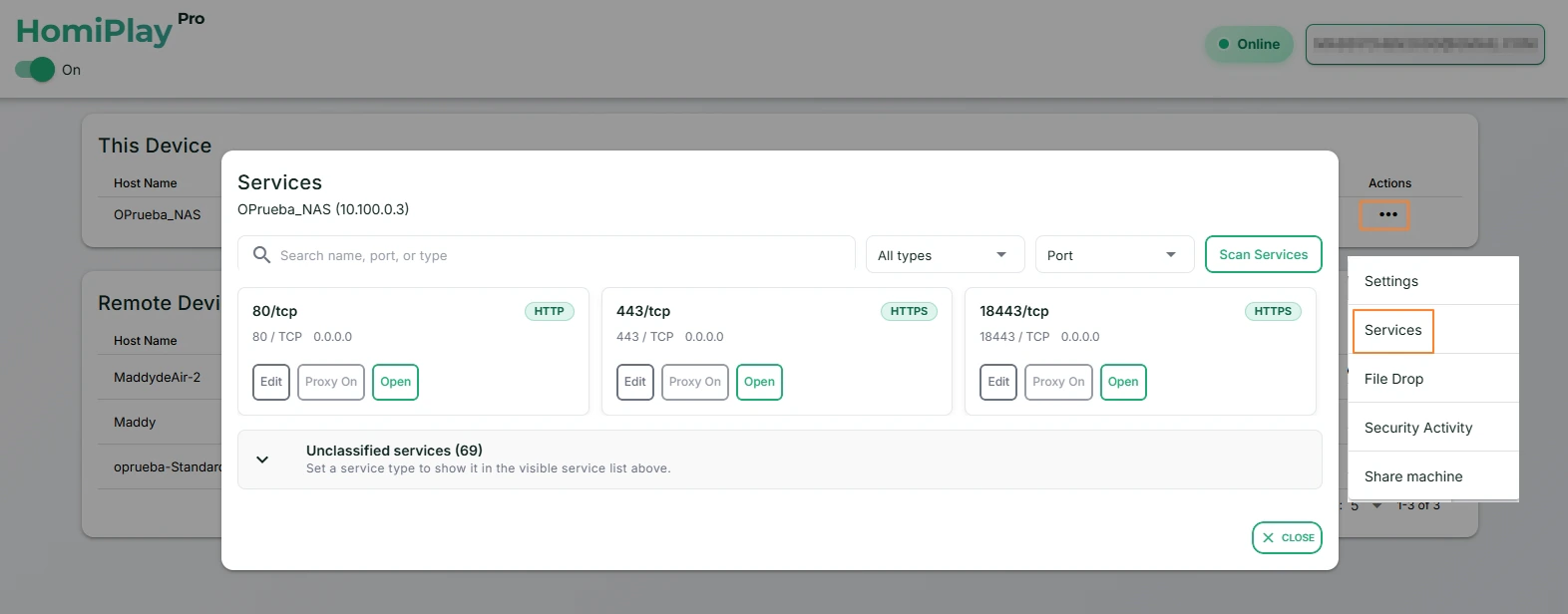
Log in to HomiPlay and Enable Service Ports

  • From within your local network, open the HomiPlay management interface in a browser (https://<NAS_IP>:18443) and sign in to your account.
  • Click "Services" in the action menu on the right side of the device, and the system will automatically scan the local ports.
  • On the port you want to connect to, click "Edit", set the matching service type (such as HTTP / HTTPS), and click "Enable" to finish setting up the remote entry point.
Step 3 illustration
4

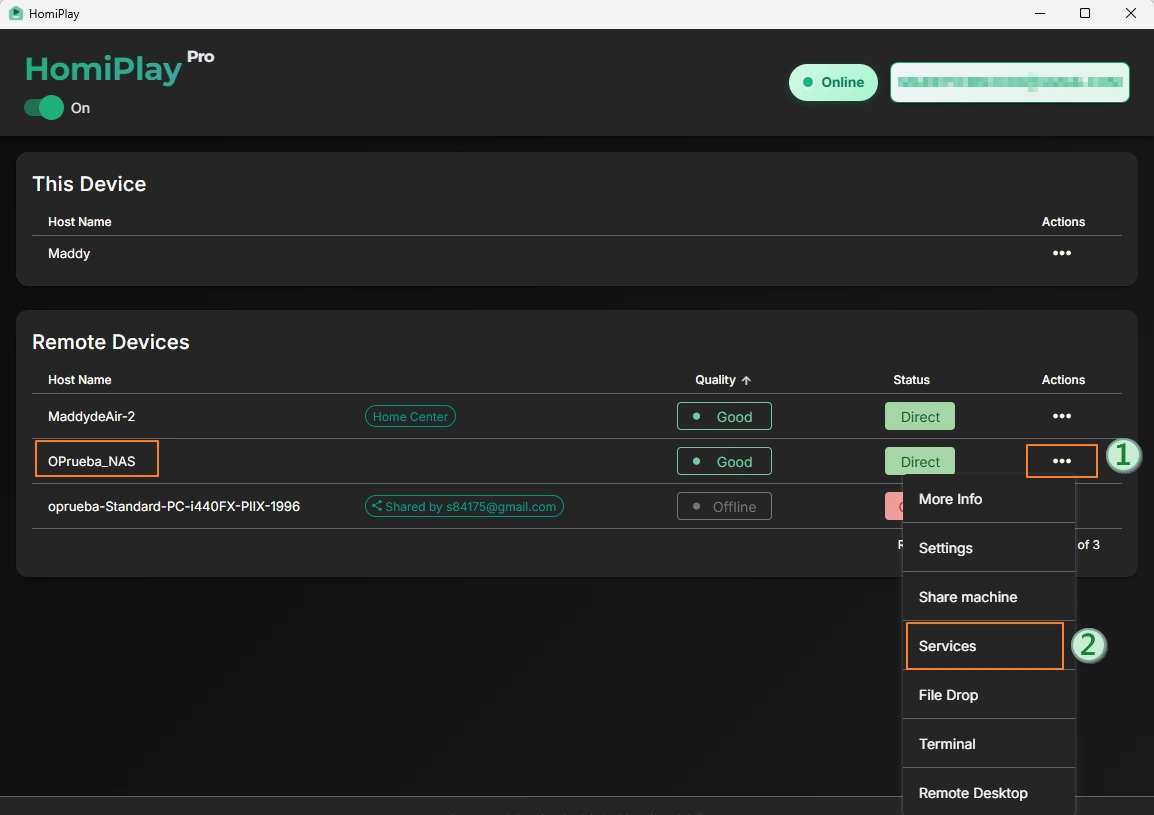
Open the HomiPlay on a Remote Device

Open HomiPlay on your remote device, find your NAS in the remote device list, and click "Services" in the menu on the right to open that device's service list.

Step 4 illustration
5

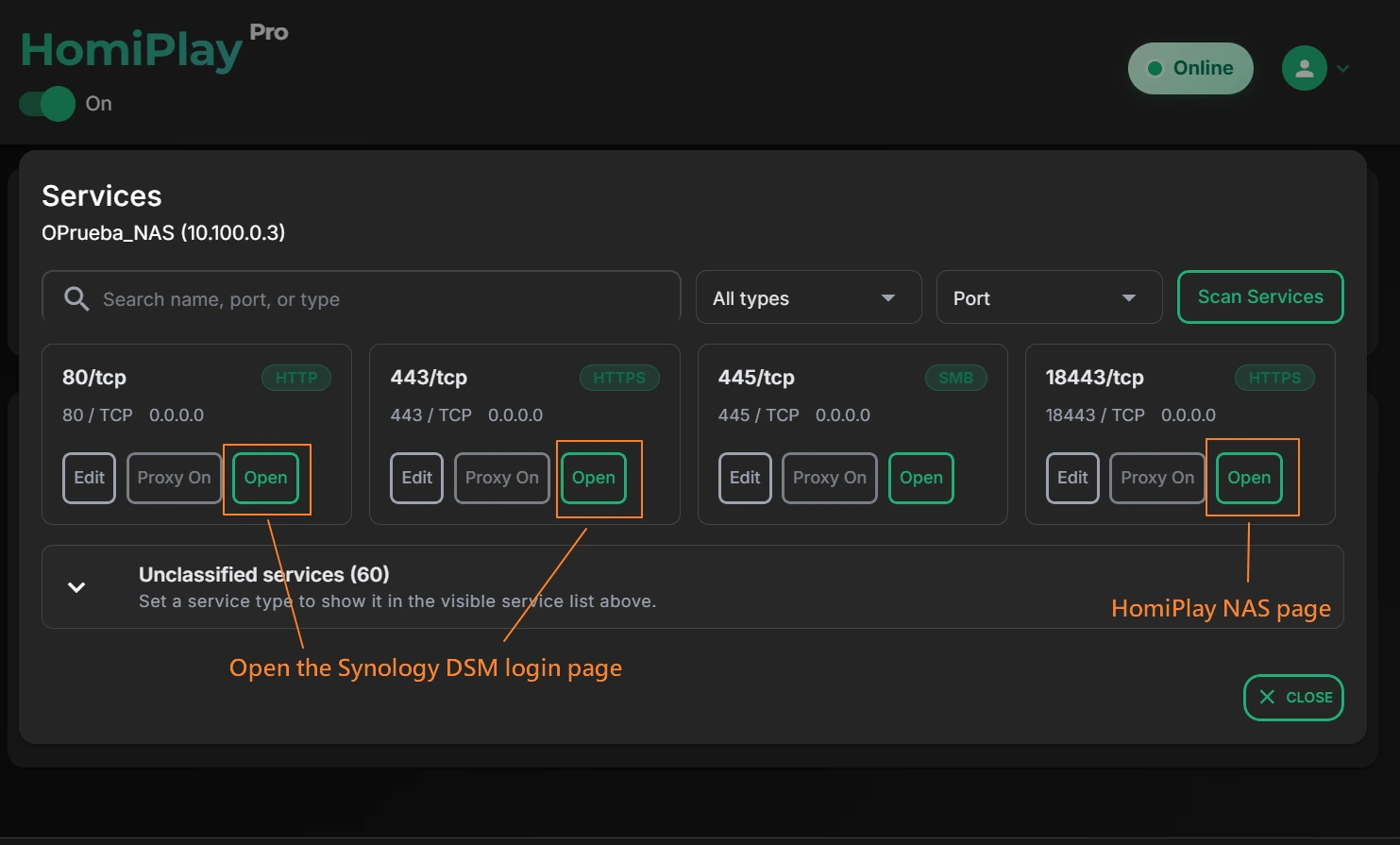
Open the Service Port in HomiPlay

In the service list, click "Open" on the right side of the port you want to connect to:

  • 80 / 443: Opens the NAS's DSM sign-in page

  • 18443: Opens the HomiPlay management page on the NAS

    Open the service port in HomiPlay

Step 5 illustration
6

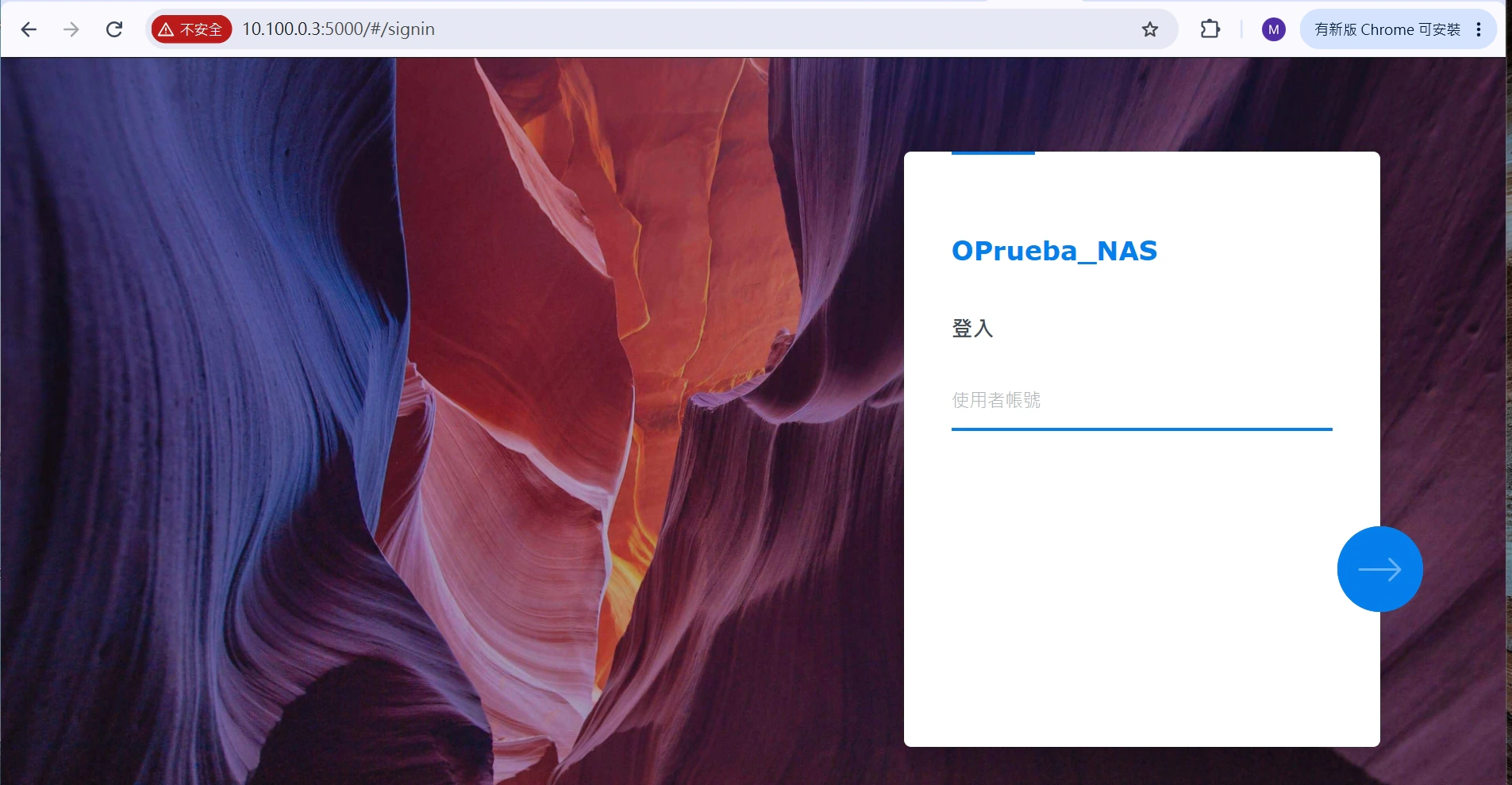
Log in to Your NAS from Anywhere

The system opens a dedicated connection URL in your browser (you can also enter the virtual IP and port directly, for example 10.100.0.3:5001) and loads the corresponding page. After signing in to DSM, you can access your files and services at high speed from anywhere, anytime!

Step 6 illustration
7

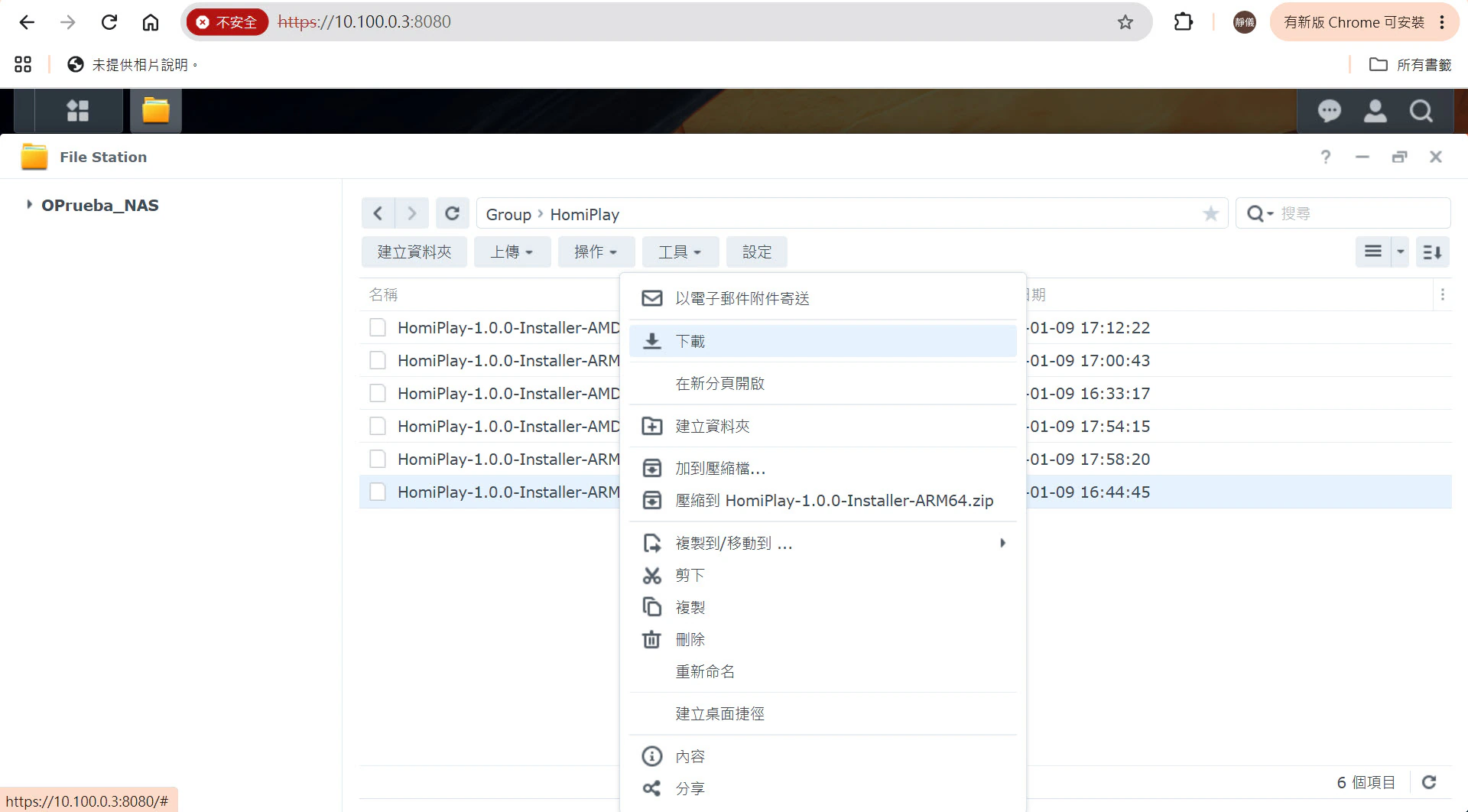
Download Files from Your NAS

After signing in to DSM, open File Station, find the file or folder you need, right-click, and choose "Download" to save it to the device you're using. Files travel over HomiPlay's direct connection, so download speed depends on your own bandwidth, and large files come back quickly.

Step 7 illustration

How Remote Access Works

HomiPlay provides a dedicated encrypted connection to your Synology NAS. Once service ports are enabled, select the NAS service on your remote device to open its sign-in page in a browser.

Other Use Cases

Are your parents stuck on an unfamiliar computer task while you are somewhere else?

Let them approve the connection at their computer, then help from elsewhere without exchanging passwords or leaving permanent access.

Learn More

Keep Your Household Connected, Wherever You Are

Connect through your home network even when you're away, maintaining a consistent network environment.

Learn More

At a hotel tonight and want to keep playing on your PS5 at home?

Connect through your home network, then open PS Remote Play and continue the game.

Learn More

Your AI Agent runs at home—how do you use it safely while away?

Reach OpenClaw and local models without publishing them to the internet.

Learn More

Got home and realized the latest file is still on your office computer?

Open that computer from home and continue where you stopped.

Learn More

Away from your desk with only a phone when a computer task becomes urgent?

Check the remote computer or handle a quick action before you get back.

Learn More

Large media is on another computer—do you really need to upload and download it?

Move it directly between computers without uploading it to the cloud first.

Learn More

Just shot a video on your phone and want to edit it on your computer now?

Send it directly without finding a cable or waiting for a cloud upload.

Learn More

On airport or hotel Wi-Fi and need to sign in to an important account?

Route the connection through your own home network before doing anything private.

Learn More

Securely Share NAS Devices (Synology NAS Example)

Effortlessly share Synology NAS services with other HomiPlay users.

Learn More

Remote Access to Shared Folders over SMB (Windows & Mac)

No VPN configuration required, and no need to expose SMB services to the public internet.

Learn More

Remote Access to Your Home NAS (QNAP NAS Example)

No complex setup—securely access your NAS anytime, anywhere

Learn More